
I have just read the book by Paul Glen titled "Leading geeks". Following the spirit of expert book review sites, such as the one from Mr. Bejtlich, here you are some comments about "Leading geeks".
The subtitle of the book is "How to manage and lead people who deliver technology". It has been published by Wiley.
First things first, this review by no means replaces the reading of the book. On the contrary, I hope that by reading these lines, this book would have more readers. You can buy it, for example, here.
I summarise my view on this book saying that ... It is a book worth reading, Although the first half contains more aha! thoughts than the second part.
Mr. Glen starts with an interesting comparison between power and leadership. He defines leadership as "a special type of power relationship in which both leaders and followers are mutually influential for their mutual benefit".
I understand that his definition of geek is someone who works with technology. He continues with a splendid series of sentences: "...for a geek, to reason is to know, to know is to be certain, to be certain is to be right, and to be right is to be safe" (page 28). I like when Mr. Glen mentions that geeks use the "problem-solution" model (page 29) as a tool to tackle almost any situation. This constitutes already a first difficult point for geek managers (page 124): They need to perform some activities, such as facilitation and information sharing, that do not fit in the problem-solution model.
He also refers to the fact that geeks are not obliged to sharpen their social skills. Most of the value they deliver comes from actions that are not related to behaviour (page 13) . This is an important point that we, geeks, have to bear in mind (and improve).
"Geeks think self-expression is communication". You can read this on page 34. I invite you to reflect on this sentence and how current education systems promote this fact. Also an interesting point is the fact that most unprofessional behaviour happens when people are under pressure (adapted from page 134).
The author states that geeks judge colleagues in a swift and merciless manner. I doubt whether I entirely agree with this, but I certainly have this in mind when I hear some judgements around me coming from geeks.
I certainly agree with the statement that we, geeks, pay more attention to the way a system works than to what a system does (page 39).
Page 62 in the book shows also a critical difference between geek and managerial work. The former requires no interruptions and the latter is mostly based on interruptions. This is a second difficult point then for geek managers. They need to change their daily way of operation.
On page 76, the author proposes 12 competencies for geek or geek managers. It is interesting to note how the needs to manage ambiguity and time horizons are part of that list of competencies.
Especially interesting is his definition of politics (page 86): "The process by which a group of people makes a decision". I link this, first, with the recommendation that the author makes to provide clarity to the environment (page 174), so that geeks are able to understand what they work for. And second, I link it with how a decentralised manner to make decisions require information sharing (adapted from page 173).
All in all, I enjoyed reading the book. I could take several thoughts and models for daily professional geek work.
If there is an IT or IT security related book you would like a review about, please leave the name in a comment and I will endeavour to read it.
Thanks to Paul Glen for his enlightening book.
Increasing online availability levels
Labels:
availability,
persistence,
ubuntu 9.10,
USB drive
Confidentiality, Integrity and Availability. The CIA acronym is always present in Information Security. The three key security properties that any piece of information has.
This post focuses on increasing availability in a specific scenario: We need to access the Internet and we do not trust the hard disks (maybe they are infected by a piece of malware, maybe there is a keylogger already installed...) of our computer.
Ubuntu releases (e.g. 8.10, 9.04 and 9.10) provide the possibility to create a Startup USB drive with some persistent space to store configuration settings and documents.
The drawback of being persistent is that the risk of infecting also the USB drive exists. However, the advantage of persistence is that we can configure it beforehand so that the Ubuntu installation on it is already aware of our router and network configuration. This is specially welcomed if the ultimate user of the USB drive will be an IT layman.
How to do it? Download the iso image preferred to be installed in the USB, go to System, Administration, USB Startup Disk Creator functionality (option present in Ubuntu 9.04 and 9.10) and configure the wizard similarly to this screenshot.

Keep the newly installed USB drive in a safe place and test it every regularly. One unexpected day, it could become the key to have Internet access available.
Happy New Availability (and 2010)!
This post focuses on increasing availability in a specific scenario: We need to access the Internet and we do not trust the hard disks (maybe they are infected by a piece of malware, maybe there is a keylogger already installed...) of our computer.
Ubuntu releases (e.g. 8.10, 9.04 and 9.10) provide the possibility to create a Startup USB drive with some persistent space to store configuration settings and documents.
The drawback of being persistent is that the risk of infecting also the USB drive exists. However, the advantage of persistence is that we can configure it beforehand so that the Ubuntu installation on it is already aware of our router and network configuration. This is specially welcomed if the ultimate user of the USB drive will be an IT layman.
How to do it? Download the iso image preferred to be installed in the USB, go to System, Administration, USB Startup Disk Creator functionality (option present in Ubuntu 9.04 and 9.10) and configure the wizard similarly to this screenshot.

Keep the newly installed USB drive in a safe place and test it every regularly. One unexpected day, it could become the key to have Internet access available.
Happy New Availability (and 2010)!
Downloading IT security videos and extracting their audio
There is a myriad of IT security related videos available on Internet.
This post deals with how to download flv videos and how to extract their audio so that they can be listened while commuting.
Downloading the video file
First step: Install the flashgot add-on in a Firefox browser.
Second step: Download the video file (flv format). The flashgot site explains the installation of the add-on and its use (basically, left and right click on the flashgot icon in the browser status bar will do).
Third step: Once the flv file is stored locally...
Extracting the audio from the video file
Here are some tips to extract the audio track from the flv file into a mp3 file so that it is ready to be listened to:
user@machine:~$ ffmpeg -i Videofileyouhave.flv -vn -ab 64000 Audiofile.mp3
Maybe parameters in the command line need to be modified according to the parameters of the video file. This line is useful to find out those video file parameters:
user@machine:~$ ffmpeg -i file
After this, depending on the mp3 player that will play the audio, sometimes it is necessary to edit the labels in the mp3 file. In Linux, easytag can do it.
When the mp3 file is not reproducible by a specific mp3 player, the use of the package audacity is required. First, to import the initial mp3 file, second, to label it, and, finally, to be export the audio to a new mp3 file.
The final mp3 file will probably be audible in the player at hand.
Happy listening!
p.s. Special thanks to M.A. for the flashgot tip.
This post deals with how to download flv videos and how to extract their audio so that they can be listened while commuting.
Downloading the video file
First step: Install the flashgot add-on in a Firefox browser.
Second step: Download the video file (flv format). The flashgot site explains the installation of the add-on and its use (basically, left and right click on the flashgot icon in the browser status bar will do).
Third step: Once the flv file is stored locally...
Extracting the audio from the video file
Here are some tips to extract the audio track from the flv file into a mp3 file so that it is ready to be listened to:
user@machine:~$ ffmpeg -i Videofileyouhave.flv -vn -ab 64000 Audiofile.mp3
Maybe parameters in the command line need to be modified according to the parameters of the video file. This line is useful to find out those video file parameters:
user@machine:~$ ffmpeg -i file
After this, depending on the mp3 player that will play the audio, sometimes it is necessary to edit the labels in the mp3 file. In Linux, easytag can do it.
When the mp3 file is not reproducible by a specific mp3 player, the use of the package audacity is required. First, to import the initial mp3 file, second, to label it, and, finally, to be export the audio to a new mp3 file.
The final mp3 file will probably be audible in the player at hand.
Happy listening!
p.s. Special thanks to M.A. for the flashgot tip.
How to upgrade virtualbox 2.8 to 3.0 in ubuntu
Labels:
update manager,
upgrade,
virtualbox
It is time to upgrade virtualbox. Normally it is a simple task with simple steps but we have to do them in this order.
In the command line:
Adding the debian repository key to our machine:
user@machine:~$ wget -q http://download.virtualbox.org/virtualbox/debian/sun_vbox.asc -O- | sudo apt-key add -
And installing
user@machine:~$ sudo apt-get install virtualbox-3.0
The Sun VirtualBox item in the Applications, System Tools menu will appear in the next bootup.
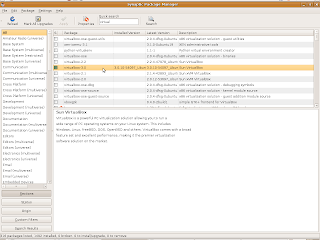
Alternatively, you can use the Synaptic Package Manager in the System, Administration menu.
By the way, DJ Soul Rebel asked me to post an entry on how to install BT4 directly in a netbook with no virtual machine involved. I will look into that (as you see, there is no deadline committed ;-)
In the command line:
Adding the debian repository key to our machine:
user@machine:~$ wget -q http://download.virtualbox.org/virtualbox/debian/sun_vbox.asc -O- | sudo apt-key add -
And installing
user@machine:~$ sudo apt-get install virtualbox-3.0
The Sun VirtualBox item in the Applications, System Tools menu will appear in the next bootup.
Alternatively, you can use the Synaptic Package Manager in the System, Administration menu.
By the way, DJ Soul Rebel asked me to post an entry on how to install BT4 directly in a netbook with no virtual machine involved. I will look into that (as you see, there is no deadline committed ;-)

First security steps after installing an Ubuntu Intrepid machine
Labels:
antivirus,
clamav,
firestarter,
firewall
Two cents to start securing your Linux Ubuntu Intrepid box: A firewall and an antivirus.
- Install a personal firewall e.g. firestarter
- $sudo apt-get install firestarter will install it (more here)
- More on how to use it here
- I recommend to run it at bootup time for all users (including the non-admin ones). Go to system>preferences>sessions and add /usr/sbin/firestarter
- For the non-admin ones, you need to edit the sudoers file as indicated here
- Use the System > Preferences > Session to include the command sudo firestarter
- Install an antivirus such as clamav
- $sudo apt-get install clamav-daemon
- More on how to do it (checking that it runs, scheduling an update, etc) here

Those are the first steps to keep the machine secure!
- Install a personal firewall e.g. firestarter
- $sudo apt-get install firestarter will install it (more here)
- More on how to use it here
- I recommend to run it at bootup time for all users (including the non-admin ones). Go to system>preferences>sessions and add /usr/sbin/firestarter
- For the non-admin ones, you need to edit the sudoers file as indicated here
- Use the System > Preferences > Session to include the command sudo firestarter
- Install an antivirus such as clamav
- $sudo apt-get install clamav-daemon
- More on how to do it (checking that it runs, scheduling an update, etc) here

Those are the first steps to keep the machine secure!
Subscribe to:
Posts (Atom)


