
For those able to read Spanish, there are already 8 articles in a popular security magazine recommending and introducing top-notch security sites. You can find them here:
1- pauldotcom.com
2- sans.org
3- commandlinekungfu.com
4- gnucitizen.org
5- irongeek.com
6- taosecurity.blogspot.com
7- www.socialengineer.org
8- jarlsberg.appspot.com
9- www.ethicalhacker.net
10- www.darkreading.com
11- ha.ckers.org
12- shadowserver.org
13- www.securitywizardry.com
14- infosecisland.com
Happy reading!
Security sites to recommend - articles for Spanish-speakers
Labels:
articles,
security sites,
SIC,
Spanish
Presentation at the V OWASP Spain Chapter meeting
This is an extract of the presentation given last 15 May 2009 at an OWASP Chapter Meeting. Thanks to the audience for their presence!
The presentation can also be downloaded from the OWASP site
Slide 1

Slide 2

Slide 3

Slide 4

Slide 5
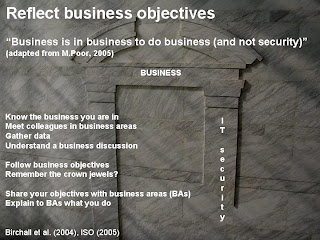
Slide 6
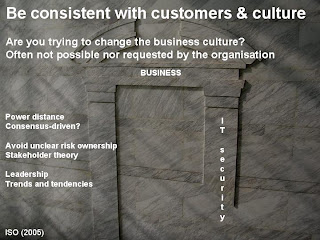
Slide 7
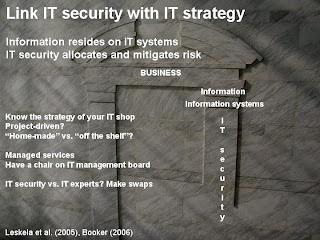
Slide 8
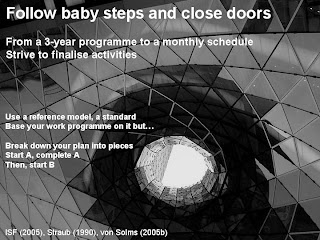
Slide 9
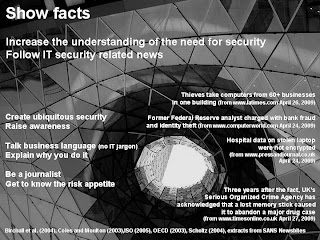
Slide 10

Slide 11
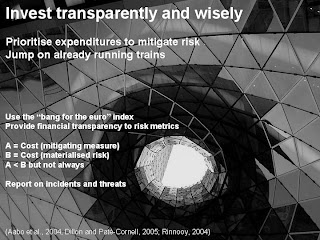
Slide 12

Slide 13
Slide 14

Slide 15
Slide 16

How to contact the author? Send an email to resolvemos at gmail.com
The presentation can also be downloaded from the OWASP site
Slide 1

Slide 2

Slide 3

Slide 4

Slide 5

Slide 6

Slide 7

Slide 8

Slide 9

Slide 10

Slide 11

Slide 12

Slide 13

Slide 14

Slide 15

Slide 16

How to contact the author? Send an email to resolvemos at gmail.com
Forensics - Mac times 101
One of the foundations in forensics is the collection of mac times. Mac times are part of file system metadata. They refer to the modified,access,changed (or created) time triplet every file has in file systems such as FAT, NTFS and ext3. An intro on mac times can be found here.
How do they work? Let's see an example in an ext3 linux-based file system. Similar learnings can be applied on other file systems.
Before starting, we install the mactime command-line application. It is part of The Coroner's Toolkit (forensic utilities).
user@machine:/tmp$ sudo apt-get install tct
We check that the mactime functionality is installed by simply invoking man:
user@machine:~$ man mactime
We start by creating a directory called mactests in /tmp where we will do our tests:
user@machine:/tmp$ mkdir mactests
user@machine:/tmp$ cd mactests
mactime test 1 - creating a file with touch
We touch a file in this testing directory and we run mactime (-y to have the year first in every line, -d to tell the directory and we need to add a date after 1/1/1970). For aesthetic purposes we add grep -v to get rid of two tmp file lines created by the mactime utility itself.
user@machine:/tmp/mactests$ touch file01
user@machine:/tmp/mactests$ mactime -y -d /tmp/mactests/ 1/2/1970 | grep -v mactime
09 Apr 10 13:37:39 0 mac -rw-r--r-- user user /tmp/mactests/file01
-> Result 1: Creating a file modifies all three times (that is why the three letters, mac, appear on the result line).
mactime test 2 - modifying a file by adding text
user@machine:/tmp/mactests$ cat /etc/resolv.conf > file01
user@machine:/tmp/mactests$ mactime -y -d /tmp/mactests/ 1/2/1970 | grep -v mactime
09 Apr 10 13:37:39 45 .a. -rw-r--r-- user user /tmp/mactests/file01
09 Apr 10 14:00:46 45 m.c -rw-r--r-- user user /tmp/mactests/file01
-> Result 2: Adding text to a file modifies two times, m and c.
mactime test 3 - changing file rights
user@machine:/tmp/mactests$ chmod u+x file01
user@machine:/tmp/mactests$ mactime -y -d /tmp/mactests/ 1/2/1970 | grep -v mactime
09 Apr 10 13:37:39 45 .a. -rwxr--r-- user user /tmp/mactests/file01
09 Apr 10 14:00:46 45 m.. -rwxr--r-- user user /tmp/mactests/file01
09 Apr 10 14:04:13 45 ..c -rwxr--r-- user user /tmp/mactests/file01
-> Result 3: Changing file rights modifies c time only.
mactime test 4 - editing a file
user@machine:/tmp/mactests$ vi file01
user@machine:/tmp/mactests$ mactime -y -d /tmp/mactests/ 1/2/1970 | grep -v mactime
09 Apr 10 16:04:44 105 .a. -rwxr--r-- user user /tmp/mactests/file01
09 Apr 10 16:05:16 105 m.c -rwxr--r-- user user /tmp/mactests/file01
-> Result 4: Editing a file modifies two times, m and c - This is similar to test 1. We just write this here to show how mac times ONLY keep the latest time (see e.g. how creation time is lost from the mac times the first time the file is edited).
mactime test 5 - what happens when a file is copied?
user@machine:/tmp/mactests$ cp file01 file02
user@machine:/tmp/mactests$ mactime -y -d /tmp/mactests/ 1/2/1970 | grep -v mactime
09 Apr 10 16:05:16 105 m.c -rwxr--r-- user user /tmp/mactests/file01
09 Apr 10 16:10:18 105 .a. -rwxr--r-- user user /tmp/mactests/file01
105 mac -rwxr--r-- user user /tmp/mactests/file02
-> Result 5: Copying a file means that source file changes its access time and destination file modifies all its three mac times.
mactime test 6 - compressing files
user@machine:/tmp/mactests$ touch file03
user@machine:/tmp/mactests$ tar -cvf file.tar *
file01
file02
file03
user@machine:/tmp/mactests$ mactime -y -d /tmp/mactests/ 1/2/1970 | grep -v mactime
09 Apr 10 16:19:55 0 mac -rw-r--r-- user user /tmp/mactests/file03
09 Apr 10 17:52:57 4130 m.c -rwxr--r-- user user /tmp/mactests/file01
09 Apr 10 17:53:07 2598 m.c -rwxr--r-- user user /tmp/mactests/file02
09 Apr 10 17:53:17 10240 mac -rw-r--r-- user user /tmp/mactests/file.tar
4130 .a. -rwxr--r-- user user /tmp/mactests/file01
2598 .a. -rwxr--r-- user user /tmp/mactests/file02
-> Result 6: Compressing files, all three mac times of the .tar compressed file are modified (exactly as when creating a new file). Accessed files modify their access time only if their modification time has been changed after they were last accessed (this has to do to the way working memory is handled - this is the reason why file01 and file02 access times appear modified and it is not the case for the just created file03).
mactime test 7 - uncompressing files
user@machine:/tmp/mactests$ mkdir untar
user@machine:/tmp/mactests$ cd untar/
user@machine:/tmp/mactests/untar$ tar -xvf ../file.tar
file01
file02
file03
user@machine:/tmp/mactests/untar$ mactime -y -d /tmp/mactests/untar/ 1/2/1970 | grep -v mactime
09 Apr 10 16:19:55 0 m.. -rw-r--r-- user user /tmp/mactests/untar/file03
09 Apr 10 17:52:57 4130 m.. -rwxr--r-- user user /tmp/mactests/untar/file01
09 Apr 10 17:53:07 2598 m.. -rwxr--r-- user user /tmp/mactests/untar/file02
09 Apr 11 13:50:09 4130 .ac -rwxr--r-- user user /tmp/mactests/untar/file01
0 .ac -rw-r--r-- user user /tmp/mactests/untar/file03
2598 .ac -rwxr--r-- user user /tmp/mactests/untar/file02
-> Result 7: Uncompressing files,access and change times are modified when uncompressed, however modification times remain untouched (this is one of the reasons why you can find files with a modification time earlier than their access and change time).
mactime test 8 - what about directories
user@machine:/tmp/mactests$ mactime -y -d /tmp/mactests/ 1/2/1970 | grep -v mactime
09 Apr 10 16:19:55 0 mac -rw-r--r-- user user /tmp/mactests/file03
09 Apr 10 17:52:57 4130 m.c -rwxr--r-- user user /tmp/mactests/file01
09 Apr 10 17:53:07 2598 m.c -rwxr--r-- user user /tmp/mactests/file02
09 Apr 10 17:53:17 10240 m.c -rw-r--r-- user user /tmp/mactests/file.tar
4130 .a. -rwxr--r-- user user /tmp/mactests/file01
2598 .a. -rwxr--r-- user user /tmp/mactests/file02
09 Apr 11 13:50:09 10240 .a. -rw-r--r-- user user /tmp/mactests/file.tar
09 Apr 11 13:50:23 4096 mac drwxr-xr-x user user /tmp/mactests/untar
user@machine:/tmp/mactests$ cd untar/
user@machine:/tmp/mactests/untar$ touch newfile04
user@machine:/tmp/mactests/untar$ cd ..
user@machine:/tmp/mactests$ mactime -y -d /tmp/mactests/ 1/2/1970 | grep -v mactime
09 Apr 10 16:19:55 0 mac -rw-r--r-- user user /tmp/mactests/file03
09 Apr 10 17:52:57 4130 m.c -rwxr--r-- user user /tmp/mactests/file01
09 Apr 10 17:53:07 2598 m.c -rwxr--r-- user user /tmp/mactests/file02
09 Apr 10 17:53:17 10240 m.c -rw-r--r-- user user /tmp/mactests/file.tar
4130 .a. -rwxr--r-- user user /tmp/mactests/file01
2598 .a. -rwxr--r-- user user /tmp/mactests/file02
09 Apr 11 13:50:09 10240 .a. -rw-r--r-- user user /tmp/mactests/file.tar
09 Apr 11 13:50:23 4096 .a. drwxr-xr-x user user /tmp/mactests/untar
09 Apr 11 13:55:46 4096 m.c drwxr-xr-x user user /tmp/mactests/untar
-> Result 8: When a directory is created, its mac times change. When a new file is added to a directory, the directory modification and access times also change.
Remember in any forensic investigation that mac times ONLY keep the latest time the file was modified, accessed or (metadata) changed.
As a final point, files in ext3 file system change m and c times when they are deleted. NTFS, however, does not.
This post is only the gate to understand mac times and the information they provide. You can find more information on this topic on the SANS forensics site
How do they work? Let's see an example in an ext3 linux-based file system. Similar learnings can be applied on other file systems.
Before starting, we install the mactime command-line application. It is part of The Coroner's Toolkit (forensic utilities).
user@machine:/tmp$ sudo apt-get install tct
We check that the mactime functionality is installed by simply invoking man:
user@machine:~$ man mactime
We start by creating a directory called mactests in /tmp where we will do our tests:
user@machine:/tmp$ mkdir mactests
user@machine:/tmp$ cd mactests
mactime test 1 - creating a file with touch
We touch a file in this testing directory and we run mactime (-y to have the year first in every line, -d to tell the directory and we need to add a date after 1/1/1970). For aesthetic purposes we add grep -v to get rid of two tmp file lines created by the mactime utility itself.
user@machine:/tmp/mactests$ touch file01
user@machine:/tmp/mactests$ mactime -y -d /tmp/mactests/ 1/2/1970 | grep -v mactime
09 Apr 10 13:37:39 0 mac -rw-r--r-- user user /tmp/mactests/file01
-> Result 1: Creating a file modifies all three times (that is why the three letters, mac, appear on the result line).
mactime test 2 - modifying a file by adding text
user@machine:/tmp/mactests$ cat /etc/resolv.conf > file01
user@machine:/tmp/mactests$ mactime -y -d /tmp/mactests/ 1/2/1970 | grep -v mactime
09 Apr 10 13:37:39 45 .a. -rw-r--r-- user user /tmp/mactests/file01
09 Apr 10 14:00:46 45 m.c -rw-r--r-- user user /tmp/mactests/file01
-> Result 2: Adding text to a file modifies two times, m and c.
mactime test 3 - changing file rights
user@machine:/tmp/mactests$ chmod u+x file01
user@machine:/tmp/mactests$ mactime -y -d /tmp/mactests/ 1/2/1970 | grep -v mactime
09 Apr 10 13:37:39 45 .a. -rwxr--r-- user user /tmp/mactests/file01
09 Apr 10 14:00:46 45 m.. -rwxr--r-- user user /tmp/mactests/file01
09 Apr 10 14:04:13 45 ..c -rwxr--r-- user user /tmp/mactests/file01
-> Result 3: Changing file rights modifies c time only.
mactime test 4 - editing a file
user@machine:/tmp/mactests$ vi file01
user@machine:/tmp/mactests$ mactime -y -d /tmp/mactests/ 1/2/1970 | grep -v mactime
09 Apr 10 16:04:44 105 .a. -rwxr--r-- user user /tmp/mactests/file01
09 Apr 10 16:05:16 105 m.c -rwxr--r-- user user /tmp/mactests/file01
-> Result 4: Editing a file modifies two times, m and c - This is similar to test 1. We just write this here to show how mac times ONLY keep the latest time (see e.g. how creation time is lost from the mac times the first time the file is edited).
mactime test 5 - what happens when a file is copied?
user@machine:/tmp/mactests$ cp file01 file02
user@machine:/tmp/mactests$ mactime -y -d /tmp/mactests/ 1/2/1970 | grep -v mactime
09 Apr 10 16:05:16 105 m.c -rwxr--r-- user user /tmp/mactests/file01
09 Apr 10 16:10:18 105 .a. -rwxr--r-- user user /tmp/mactests/file01
105 mac -rwxr--r-- user user /tmp/mactests/file02
-> Result 5: Copying a file means that source file changes its access time and destination file modifies all its three mac times.
mactime test 6 - compressing files
user@machine:/tmp/mactests$ touch file03
user@machine:/tmp/mactests$ tar -cvf file.tar *
file01
file02
file03
user@machine:/tmp/mactests$ mactime -y -d /tmp/mactests/ 1/2/1970 | grep -v mactime
09 Apr 10 16:19:55 0 mac -rw-r--r-- user user /tmp/mactests/file03
09 Apr 10 17:52:57 4130 m.c -rwxr--r-- user user /tmp/mactests/file01
09 Apr 10 17:53:07 2598 m.c -rwxr--r-- user user /tmp/mactests/file02
09 Apr 10 17:53:17 10240 mac -rw-r--r-- user user /tmp/mactests/file.tar
4130 .a. -rwxr--r-- user user /tmp/mactests/file01
2598 .a. -rwxr--r-- user user /tmp/mactests/file02
-> Result 6: Compressing files, all three mac times of the .tar compressed file are modified (exactly as when creating a new file). Accessed files modify their access time only if their modification time has been changed after they were last accessed (this has to do to the way working memory is handled - this is the reason why file01 and file02 access times appear modified and it is not the case for the just created file03).
mactime test 7 - uncompressing files
user@machine:/tmp/mactests$ mkdir untar
user@machine:/tmp/mactests$ cd untar/
user@machine:/tmp/mactests/untar$ tar -xvf ../file.tar
file01
file02
file03
user@machine:/tmp/mactests/untar$ mactime -y -d /tmp/mactests/untar/ 1/2/1970 | grep -v mactime
09 Apr 10 16:19:55 0 m.. -rw-r--r-- user user /tmp/mactests/untar/file03
09 Apr 10 17:52:57 4130 m.. -rwxr--r-- user user /tmp/mactests/untar/file01
09 Apr 10 17:53:07 2598 m.. -rwxr--r-- user user /tmp/mactests/untar/file02
09 Apr 11 13:50:09 4130 .ac -rwxr--r-- user user /tmp/mactests/untar/file01
0 .ac -rw-r--r-- user user /tmp/mactests/untar/file03
2598 .ac -rwxr--r-- user user /tmp/mactests/untar/file02
-> Result 7: Uncompressing files,access and change times are modified when uncompressed, however modification times remain untouched (this is one of the reasons why you can find files with a modification time earlier than their access and change time).
mactime test 8 - what about directories
user@machine:/tmp/mactests$ mactime -y -d /tmp/mactests/ 1/2/1970 | grep -v mactime
09 Apr 10 16:19:55 0 mac -rw-r--r-- user user /tmp/mactests/file03
09 Apr 10 17:52:57 4130 m.c -rwxr--r-- user user /tmp/mactests/file01
09 Apr 10 17:53:07 2598 m.c -rwxr--r-- user user /tmp/mactests/file02
09 Apr 10 17:53:17 10240 m.c -rw-r--r-- user user /tmp/mactests/file.tar
4130 .a. -rwxr--r-- user user /tmp/mactests/file01
2598 .a. -rwxr--r-- user user /tmp/mactests/file02
09 Apr 11 13:50:09 10240 .a. -rw-r--r-- user user /tmp/mactests/file.tar
09 Apr 11 13:50:23 4096 mac drwxr-xr-x user user /tmp/mactests/untar
user@machine:/tmp/mactests$ cd untar/
user@machine:/tmp/mactests/untar$ touch newfile04
user@machine:/tmp/mactests/untar$ cd ..
user@machine:/tmp/mactests$ mactime -y -d /tmp/mactests/ 1/2/1970 | grep -v mactime
09 Apr 10 16:19:55 0 mac -rw-r--r-- user user /tmp/mactests/file03
09 Apr 10 17:52:57 4130 m.c -rwxr--r-- user user /tmp/mactests/file01
09 Apr 10 17:53:07 2598 m.c -rwxr--r-- user user /tmp/mactests/file02
09 Apr 10 17:53:17 10240 m.c -rw-r--r-- user user /tmp/mactests/file.tar
4130 .a. -rwxr--r-- user user /tmp/mactests/file01
2598 .a. -rwxr--r-- user user /tmp/mactests/file02
09 Apr 11 13:50:09 10240 .a. -rw-r--r-- user user /tmp/mactests/file.tar
09 Apr 11 13:50:23 4096 .a. drwxr-xr-x user user /tmp/mactests/untar
09 Apr 11 13:55:46 4096 m.c drwxr-xr-x user user /tmp/mactests/untar
-> Result 8: When a directory is created, its mac times change. When a new file is added to a directory, the directory modification and access times also change.
Remember in any forensic investigation that mac times ONLY keep the latest time the file was modified, accessed or (metadata) changed.
As a final point, files in ext3 file system change m and c times when they are deleted. NTFS, however, does not.

This post is only the gate to understand mac times and the information they provide. You can find more information on this topic on the SANS forensics site
Keeping your command lines on Linux
This post is just a handy proposal when doing pen-testing from a Linux box. Keep all the commands you launched from your command line. By default, normally the first 500 ones are saved in the history file of your user profile, in a file named .bash_history.
It is a good idea to increase the number of commands that will be saved in that file between sessions and per session. How to do it?
First, check your current values
youruser@yourmachine:~$ echo $HISTFILESIZE
500
youruser@yourmachine:~$ echo $HISTSIZE
500
Second, modify them so that you can keep a reasonably high amount of command lines in the .bash_history file between sessions (HISTFILESIZE) and during sessions (HISTFILESIZE):
youruser@yourmachine:~$ vim .profile
...add these lines in the .profile file
# extended number of command lines per session
export HISTSIZE=50000
# extended number of command lines in the history file
export HISTFILESIZE=250000
Third, re-load your profile
youruser@yourmachine:~$ source ./.profile
Fourth, check new values
youruser@yourmachine:~$ echo $HISTFILESIZE
250000
youruser@yourmachine:~$ echo $HISTSIZE
50000
Fifth, do the same steps with the root user (if you use it for pen-testing)
And finally, copy the history file regularly so that your commands are stored in two different locations:
youruser@yourmachine:~$ cp ./.bash_history commandhistory032009.txt
It is a good idea to increase the number of commands that will be saved in that file between sessions and per session. How to do it?
First, check your current values
youruser@yourmachine:~$ echo $HISTFILESIZE
500
youruser@yourmachine:~$ echo $HISTSIZE
500
Second, modify them so that you can keep a reasonably high amount of command lines in the .bash_history file between sessions (HISTFILESIZE) and during sessions (HISTFILESIZE):
youruser@yourmachine:~$ vim .profile
...add these lines in the .profile file
# extended number of command lines per session
export HISTSIZE=50000
# extended number of command lines in the history file
export HISTFILESIZE=250000
Third, re-load your profile
youruser@yourmachine:~$ source ./.profile
Fourth, check new values
youruser@yourmachine:~$ echo $HISTFILESIZE
250000
youruser@yourmachine:~$ echo $HISTSIZE
50000
Fifth, do the same steps with the root user (if you use it for pen-testing)
And finally, copy the history file regularly so that your commands are stored in two different locations:
youruser@yourmachine:~$ cp ./.bash_history commandhistory032009.txt
Backtrack, netbooks and virtualisation
Labels:
Backtrack 3,
drivers,
security tests,
ubuntu 8.10,
virtualbox,
virtualisation

The need to install and work with new Linux distributions, some of them security related such us Backtrack 3, is always permanent. By the way, here you can find the link to the Linux distributions list.
Most of the current security tools run on those platforms. If we add as hardware element to this scenario one of the lightweight and attractive netbooks, then the combination can result into a frustrating experience trying to get network, especially wireless, video and sound to work.
This entry proposes a way forward for the scenario mentioned. The target will be to install a security testing platform (e.g. Backtrack 3) in a netbook without having to install new drivers on the machine (see screenshot above). The key steps are:
- Install in your netbook the operating system you prefer. If possible, let it coincide with the easiest OS. For example, the installation of Ubuntu intrepid (8.10) in most of the netbooks is relatively easy following the tips presented in the Ubuntu wiki. Do not trust all sites proposing ways forward to solve the problems you face with the installation (some of the pages that the typical search engines can provide with keywords such as "install wireless Ubuntu netbook name" will confuse you rather than help you).
- Once you get your video drivers and network to work, you have already a working platform - let's get the most of that. Probably you will need to install additional drivers in Ubuntu. A note on this, keep the driver files (and the instructions how to do it) at hand. You will need to install them again after a kernel update if they are not part of the regular distribution.
- Install virtualbox, a virtualisation platform available from Sun, ready to use and able to produce snapshots.
- Within virtualbox, create a virtual machine out of the Backtrack 3 iso file. You can even create a bootable virtual harddisk based on BT3 following this website (the last fragment related to VMware, where there is also a link to the automated script present in BT3 beta, and absent in BT3 final, that will help you) and this one (also at the end of the page).
- There is no need to go through the hassle of installing new drivers. If you got your wireless network running in your host system, then the guest system will use it directly ;-)
This way, you will get something like the screenshot below i.e. Backtrack 3 with a working wireless connection running on a virtual machine on top of Ubuntu Intrepid.
Last handy tip: Follow the menues shown in this screenshot and place the KDE panel on top of the screen and not below (as it appears by default)- otherwise you will not see it in the small screen of the netbook - unless you install virtuabox guest additions!)
 Happy virtual work!
Subscribe to:
Posts (Atom)


